









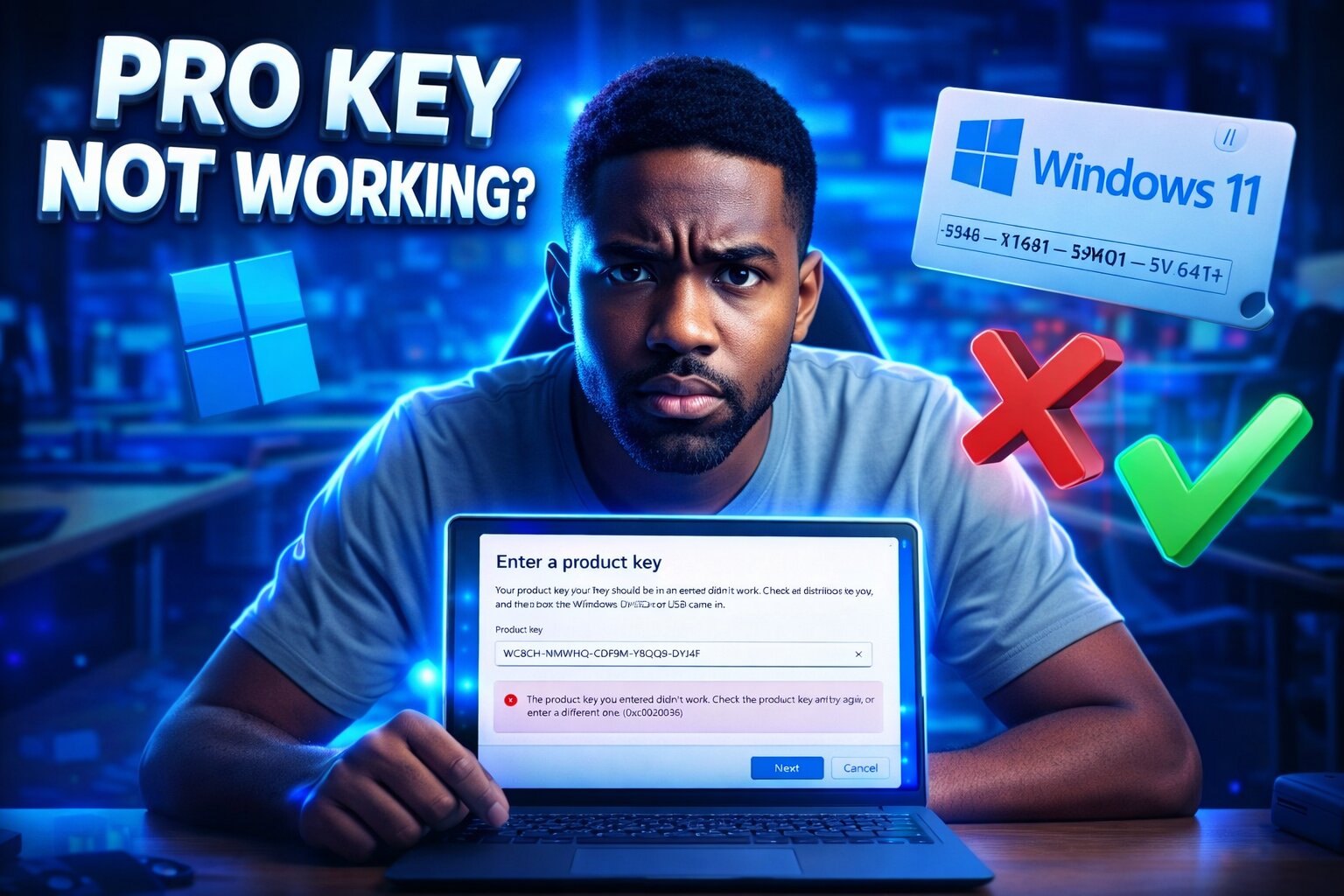
Windows 11 Pro Key Not Working? Fix Error 0xC0020036 (Step-by-Step Guide)
You just purchased a Windows 11 Pro product key, entered it carefully into your system, and hit activate. Instead of seeing that satisfying "Windows is activated" message, you're staring at an error screen that says your product key didn't work, complete with the cryptic code 0xC0020036. Before you panic or assume you've been sold a faulty key, take a breath.
This error is one of the most common Windows activation issues, and it almost never means your product key is invalid or fake. In fact, this specific error code appears when you're trying to activate a Windows 11 Pro key on a system that currently has Windows 11 Home installed. Windows simply won't let you use a Pro key to activate a Home edition directly, even though both are legitimate versions of Windows 11. The good news is that Microsoft provides an official, straightforward solution that takes about 10 minutes to complete.
In this guide, you'll learn exactly why error 0xC0020036 appears, how to verify which Windows edition you're running, and the precise steps to upgrade from Home to Pro and successfully activate your purchased license. This isn't a workaround or hack. This is the official Microsoft-supported method that thousands of users complete successfully every day.
What Causes Error 0xC0020036?
Error 0xC0020036 specifically indicates a product key mismatch between what Windows expects and what you're trying to use. This happens because Windows 11 comes in multiple editions, with Home and Pro being the most common for individual users and small businesses. Each edition requires its own specific product key, and Windows enforces this distinction strictly during activation.
When you purchase a new computer or laptop, it typically comes with Windows 11 Home pre-installed. Most manufacturers choose Home because it costs less and meets the needs of average consumers. However, many users and businesses need the additional features that Windows 11 Pro provides, such as BitLocker encryption, Remote Desktop host capabilities, group policy management, and support for more than 128GB of RAM. That's why they purchase a separate Windows 11 Pro license.
The problem arises when you try to enter that Pro key directly into a system running Home edition. Windows sees the mismatch and refuses the activation with error 0xC0020036. This isn't a bug or a flaw in your product key. Windows is simply telling you that you need to upgrade the edition first before the Pro key can activate your system. Think of it like trying to use a car key for a higher trim level before the dealership upgrades your vehicle to that trim. The key is perfectly valid, but the system needs to be prepared to accept it first.
| Scenario | Windows Edition Installed | Key Type You Have | Result |
|---|---|---|---|
| Common Cause of 0xC0020036 | Windows 11 Home | Windows 11 Pro Key | Error: Edition mismatch |
| Correct Scenario | Windows 11 Pro | Windows 11 Pro Key | Activation succeeds |
| Another Common Error | Windows 11 Pro | Windows 11 Home Key | Error: Cannot downgrade |
Key Differences Between Home and Pro
Understanding why you might need Pro instead of Home helps clarify why this upgrade process exists. Windows 11 Home is designed for personal computing, entertainment, and basic productivity. It includes everything most home users need: Microsoft Edge, Windows Security, virtual desktops, and support for gaming features. Windows 11 Pro includes all of those features plus several that matter for business users, IT professionals, and power users who need enhanced security and management capabilities.
The Pro edition adds BitLocker drive encryption to protect sensitive data, Remote Desktop host functionality so you can access your PC from anywhere, the ability to join an Active Directory or Azure AD domain for enterprise environments, and support for up to 2TB of RAM compared to Home's 128GB limit. For small business owners or anyone handling confidential information, these features often justify the upgrade from Home to Pro. That's exactly why you purchased a Pro key in the first place, and why fixing this activation error is worth the few extra steps.
Step 1: Check Your Installed Windows Edition
Before attempting any fixes, you need to confirm which edition of Windows 11 you're actually running. This verification takes about 30 seconds and eliminates any guesswork. Sometimes users assume they have one edition when their system actually came with another, so checking this first prevents wasted time on unnecessary troubleshooting steps.
Open the Settings app by pressing the Windows key and the letter I simultaneously, or by clicking the Start button and selecting the gear icon. Once Settings opens, click on System in the left sidebar if it's not already selected. Scroll down to the very bottom of the System page and click on About. This opens the specifications page for your computer.
Look for the section labeled Windows specifications. You'll see several lines of information including your device name, processor, and installed RAM. The line you're looking for says Edition, followed by either Windows 11 Home, Windows 11 Pro, Windows 11 Enterprise, or another variant. If it says Windows 11 Home, then you've confirmed the source of your activation error. Your Pro key can't activate a Home edition, which means you need to upgrade the edition before activating.
While you're on the About page, also check the Activation status near the top of the Windows specifications section. It probably says something like "Windows is activated with a digital license" or "Windows is not activated." This confirms that your system has an existing Home license that needs to be upgraded before your new Pro key can take effect. Make a mental note of this status because you'll return to this same page after completing the upgrade process.
Step 2: Upgrade Windows 11 Home to Pro (Official Method)
Now comes the critical step that resolves the error. You're going to upgrade your Windows 11 Home installation to Windows 11 Pro using an official Microsoft generic upgrade key. This is not a crack, not a hack, and not illegal. Microsoft publishes these generic keys specifically for this purpose, allowing users to change their Windows edition before activating with their purchased license.
Understanding what this step does helps avoid confusion. When you enter the generic upgrade key, Windows unlocks the Pro edition features on your system, but it does not activate Windows. Think of this as changing your system's "mode" from Home to Pro. Your system will still show as not activated or will retain whatever activation status it had before. The generic key simply prepares your system to accept a Pro activation key, which you'll enter in the next step.
The Official Windows 11 Pro Upgrade Key
Microsoft provides this generic key for upgrading from Home to Pro. Copy this key exactly as shown, including the hyphens:
This key is publicly available and safe to use. You can find it in official Microsoft documentation and support articles. Using it will not violate any terms of service or cause problems with your system. Thousands of users enter this exact key every day when upgrading their Windows edition.
How to Enter the Upgrade Key
Go back to Settings by pressing Windows key plus I. Click on System, then scroll down and click Activation. On the Activation page, look for a link or button that says "Change product key" or "Update product key." Click that link. A small window will appear with a text field asking you to enter a product key.
Carefully type or paste the generic upgrade key shown above into this field. Double-check that you've entered it correctly, matching the letters and numbers exactly including the hyphens in the right places. Then click Next or Activate. Windows will verify the key with Microsoft's servers, which usually takes just a few seconds if you have an active internet connection.
If the key is accepted, Windows will begin the upgrade process from Home to Pro. You might see a progress indicator or a message saying Windows is preparing the upgrade. Your screen might flicker or go black briefly. In most cases, Windows will prompt you to restart your computer to complete the edition upgrade. Save any open work and click Restart now when prompted. The restart process might take slightly longer than usual, perhaps three to five minutes, as Windows reconfigures itself for the Pro edition.
After your computer restarts and you log back in, return to Settings, then System, then About. Check the Edition line under Windows specifications again. It should now display Windows 11 Pro instead of Windows 11 Home. If it still shows Home, restart your computer one more time and check again. The upgrade occasionally requires a second restart to fully complete.
Step 3: Activate Windows 11 Pro with Your Purchased Key
With Windows 11 Pro now installed on your system, you're ready to activate it using the Pro product key you purchased. This is the key you tried to use initially, the one that gave you error 0xC0020036. Now that your system is running the Pro edition, this key will work exactly as intended.
Navigate back to Settings, then System, then Activation. The Activation status should currently show that Windows is not activated, or possibly that it's activated with a digital Home license that no longer matches your Pro edition. Click on "Change product key" or "Update product key" just like you did in the previous step. This time, instead of entering the generic upgrade key, you'll enter your purchased Windows 11 Pro key.
Type or paste your Pro product key carefully into the text field. These keys are usually 25 characters long formatted as five groups of five characters separated by hyphens. Make absolutely certain you're entering the correct key and that you haven't confused any similar-looking characters like the number zero and the letter O, or the number one and the letter I. After entering the key, click Next or Activate.
Windows will contact Microsoft's activation servers to verify your product key. This verification typically completes in five to fifteen seconds, assuming you have a stable internet connection. If your key is valid and hasn't been used on more devices than the license allows, you'll see a success message confirming that Windows is now activated. The Activation page should display "Windows is activated with a digital license linked to your Microsoft account" or simply "Windows is activated."
Need a genuine Windows 11 Pro key? Browse our Windows 11 licenses with instant delivery and lifetime validity.
Congratulations. Your Windows 11 Pro installation is now fully activated and legal. All Pro features are unlocked and available for use, including BitLocker, Remote Desktop, and everything else that distinguishes Pro from Home. You can verify this by exploring Settings and noticing that previously unavailable options are now accessible. For example, you can now search for BitLocker in Settings and configure drive encryption, something that wasn't possible with Home edition.
What If Activation Still Doesn't Work?
In most cases, following the steps above resolves error 0xC0020036 and successfully activates Windows 11 Pro. However, a small percentage of users might encounter additional issues that prevent activation even after upgrading to the Pro edition. Before assuming the worst, work through these additional troubleshooting steps that solve most remaining activation problems.
Check Your Internet Connection
Windows activation requires communication with Microsoft's servers, which means your computer needs a working internet connection. Open a web browser and try loading any website to confirm you're actually online. If websites won't load, fix your internet connection first before attempting activation again. Sometimes activation fails simply because the activation servers couldn't be reached, not because anything is wrong with your product key.
Restart and Try Again
It sounds basic, but restarting your computer and attempting activation one more time solves a surprising number of remaining issues. Windows sometimes needs a fresh start to properly recognize the Pro edition upgrade or to clear temporary activation state that might be interfering. Restart your PC, wait for it to fully boot up and log in, then immediately try activating with your Pro key again before doing anything else.
Verify You're Using the Correct Product Key
Double-check the product key you're entering. Compare it character by character against the key you received when you made your purchase. It's easy to accidentally transpose digits or letters, especially with 25-character keys. Also confirm that you're using a Windows 11 Pro key specifically, not a Windows 10 Pro key or a Windows 11 Home key. While Windows 10 Pro keys sometimes work on Windows 11 Pro, they're not officially supported for clean activations and might cause errors.
Contact Your Key Provider
If you've verified your internet connection, restarted multiple times, confirmed you're entering the correct key, and activation still fails, it's time to contact whoever sold you the product key. Reputable sellers stand behind their products and will help troubleshoot activation issues or provide a replacement key if necessary. If you purchased your key from eKeys, our support team can guide you through additional troubleshooting steps or verify your key's status in our system.
When contacting support, have the following information ready to speed up the process: your product key (though only share this through secure channels, never in public forums), the exact error message you're receiving if it's different from 0xC0020036, a screenshot of your Windows edition from Settings showing that you're now on Pro, and confirmation that you've already completed the upgrade from Home to Pro using the generic key. This context helps support staff quickly identify whether the issue is with the key itself or with some other aspect of your system configuration.
Important: Your Key Is Likely Fine
Let's address the worry that's probably been in the back of your mind this entire time. When you see an error message saying your product key didn't work, your first thought is probably that you bought a fake key or got scammed. This is completely understandable, but in the vast majority of cases involving error 0xC0020036, your product key is perfectly legitimate and will work fine once you complete the edition upgrade.
Error 0xC0020036 is an edition mismatch error, not an invalid key error. If Microsoft's servers thought your key was fake, counterfeit, or already used too many times, you'd receive a different error code. The fact that you're getting this specific error actually indicates that Microsoft's activation servers recognized your key as a valid Pro key. The servers simply rejected it because your system wasn't ready to accept a Pro key yet. That's exactly what the upgrade process fixes.
This scenario is so common that it happens dozens of times every single day across all product key retailers, not just budget sellers or gray market sources. Even customers who purchase keys directly from Microsoft or from premium retailers encounter this error when they don't realize their PC came with Home edition. The error has nothing to do with key legitimacy and everything to do with edition compatibility.
You didn't do anything wrong, either. There's no obvious way to know ahead of time that you need to upgrade editions before activating unless you've been through this process before or happened to read about it. Microsoft could certainly make this clearer in their activation interface, perhaps by detecting the edition mismatch and automatically offering to upgrade, but that's not how the current system works. Instead, you get a generic error message that sounds alarming but really just means you need to take one additional preparatory step.
If you purchased your key from a reputable seller and it activates successfully after completing the upgrade process, you can be confident that your license is genuine and legal. Windows activation confirms that Microsoft's servers validated your product key against their database. An activated Windows installation means you have a proper license, period. Don't let the initial error make you doubt the purchase you made.
Frequently Asked Questions
Is the generic upgrade key legal to use?
Yes, absolutely. Microsoft publishes this generic key in their official documentation specifically for the purpose of upgrading between Windows editions. Using it does not violate any terms of service and is the recommended method for changing editions before activation. Thousands of IT professionals and home users use this key every day. It does not activate Windows, it only changes the edition so your purchased Pro key can then activate the system.
Does the generic key activate Windows, or do I still need my purchased key?
The generic upgrade key only changes your Windows edition from Home to Pro. It does not activate Windows at all. You absolutely still need to use your purchased Windows 11 Pro key to activate your system after the edition upgrade completes. Think of the generic key as unlocking Pro features, while your purchased key actually validates your license with Microsoft. Both keys serve completely different purposes in this process.
Will this process work for Windows 10 Home to Windows 10 Pro?
Yes, the same concept applies to Windows 10, though you'll need the Windows 10 Pro generic upgrade key instead of the Windows 11 version. Microsoft provides different generic keys for each version of Windows. The Windows 10 Pro generic key is VK7JG-NPHTM-C97JM-9MPGT-3V66T, which happens to be the same as Windows 11 in this case, but always verify you're using the correct key for your Windows version from official Microsoft documentation.
Can I upgrade from Home to Pro without reinstalling Windows?
Yes, that's exactly what this guide describes. The edition upgrade process happens within your existing Windows installation without requiring any reinstallation or data loss. All your programs, files, and settings remain exactly where they are. You're simply unlocking additional Pro features in the same installation. The process takes about 10 minutes and only requires a restart or two. There's no need to back up and restore or to go through a clean installation process.
What if I see a different error code when trying to activate?
Different error codes indicate different issues. Error 0xC0020036 specifically means edition mismatch, which this guide solves. If you see error codes like 0xC004F074, 0xC004C003, or others, those typically indicate network issues, server problems, or that a key has been blocked or used too many times. For error codes other than 0xC0020036, consult Microsoft's activation troubleshooter in Settings or contact your key provider for assistance specific to that error.
How long does the edition upgrade take?
The actual upgrade process typically takes between five and ten minutes including restarts. Entering the generic key and having Windows recognize it takes only a few seconds. The restart to complete the edition change usually takes three to five minutes depending on your computer's speed. After logging back in, activating with your purchased key takes another five to fifteen seconds. The entire process from start to finish should be done in well under fifteen minutes for most systems.
Conclusion
Error 0xC0020036 looks scary when it appears, especially when you just want to activate Windows and get on with your work. But as you've learned, this error is actually one of the simplest activation issues to resolve. It doesn't mean your product key is fake or invalid. It simply means Windows needs a quick edition upgrade before accepting your Pro license. By checking your Windows edition, using the official Microsoft generic key to upgrade from Home to Pro, and then activating with your purchased key, you've solved a problem that stops thousands of users every day.
The steps in this guide follow Microsoft's official supported process for changing Windows editions. Nothing here is a hack or workaround. You've legitimately upgraded your system to Windows 11 Pro and activated it with a proper license. If activation succeeded, your Windows installation is fully legal and validated by Microsoft's servers. All the Pro features you paid for are now unlocked and ready to use, from BitLocker encryption to Remote Desktop and beyond.
If you're still experiencing issues after following these steps, don't hesitate to reach out for support. Reputable key sellers want you to have a working product and will help troubleshoot any remaining problems. The key to successful Windows activation is patience and following the correct procedure for your specific situation. You've now got the knowledge to handle this common issue and can even help others who encounter the same error.
Need a Windows 11 Pro License?
Get instant delivery and lifetime support for genuine Windows keys.
Shop Windows 11 Licenses