








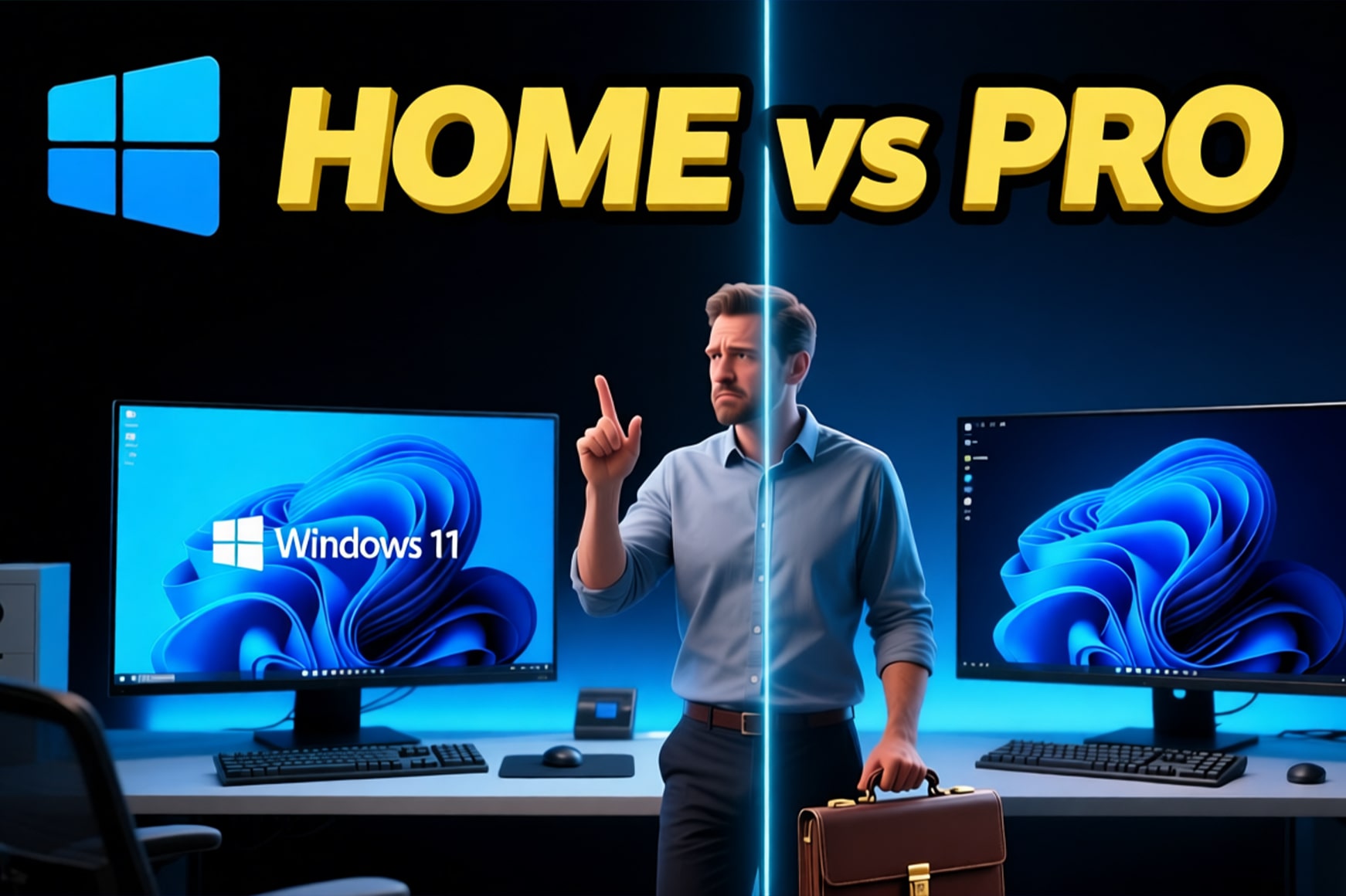
You're about to buy Windows 11, and Microsoft offers you two choices: Home for $139 or Pro for $199. That $60 difference seems small, but it represents a massive gap in features, security tools, and capabilities that most buyers never fully understand. Pro includes advanced encryption, remote access, virtualization tools, and business management features that Home completely lacks. The critical question isn't whether Pro offers more—it obviously does—but whether those additional features actually matter for how you'll use your computer.
Most Windows 11 buyers default to Home because it comes preinstalled on consumer laptops and costs less upfront. This makes perfect sense for typical home users who browse the web, stream videos, play games, and manage documents. However, thousands of buyers each year discover too late that they needed Pro's BitLocker encryption for work requirements, Remote Desktop for accessing their PC remotely, or Hyper-V for running virtual machines. Upgrading from Home to Pro after purchase costs $99—nearly as much as buying Pro initially—making the wrong initial choice an expensive mistake.
This comprehensive comparison examines every meaningful difference between Windows 11 Home and Pro, from pricing and features to hardware limits and real-world performance. You'll learn exactly which security tools Pro adds, why businesses require it, how hardware support differs, and most importantly, which edition actually delivers better value for your specific needs. By the end, you'll know precisely whether that $60 premium for Pro represents money well spent or wasted on features you'll never use.
Price Comparison: Is Pro Worth the Extra Cost?
Windows 11 Home retails for $139 as a standalone license, while Windows 11 Pro costs $199—a $60 difference that represents roughly 43% more expensive. If you already own Windows 11 Home and want to upgrade to Pro later, Microsoft charges $99 for the upgrade path, bringing your total investment to $238 versus the $199 you'd pay buying Pro initially. This pricing structure creates a clear incentive to choose correctly the first time, as upgrading after the fact costs significantly more than simply purchasing Pro upfront.
However, most Windows 11 buyers never pay these retail prices directly because the operating system typically comes preinstalled on new computers. Laptop and desktop manufacturers negotiate volume licensing deals with Microsoft and pass along the costs through slightly higher hardware prices. When configuring a new PC from manufacturers like Dell, HP, or Lenovo, you'll often see Windows 11 Pro as a $50-80 upgrade option over Home. This represents better value than Microsoft's retail pricing, making Pro more accessible for buyers purchasing new hardware who want the additional features from day one.
| Purchase Scenario | Windows 11 Home | Windows 11 Pro | Price Difference |
|---|---|---|---|
| Retail License | $139 | $199 | $60 more |
| OEM (New PC) | Included | $50-80 upgrade | $50-80 more |
| Home to Pro Upgrade | $139 initial | $99 upgrade = $238 total | $39 penalty |
| Volume Licensing (5+ PCs) | Not available | Negotiated pricing | Varies |
Understanding the Value Proposition
The $60 premium for Pro represents excellent value if you actually use its exclusive features, but represents wasted money if those features sit idle. Consider BitLocker encryption alone—third-party full-disk encryption software like VeraCrypt offers similar protection for free, but requires technical knowledge to implement properly and lacks the seamless integration BitLocker provides. Professional disk encryption solutions cost $50-100 annually, making BitLocker's inclusion in Pro valuable for security-conscious users who would otherwise purchase separate encryption software.
Remote Desktop functionality presents similar value dynamics. Windows 11 Home can act as a Remote Desktop client—meaning you can use it to connect to other computers—but cannot function as a Remote Desktop host, preventing you from accessing your Home PC remotely. Third-party alternatives like TeamViewer charge $50 monthly for commercial use or Chrome Remote Desktop offers free access with Google account requirements. If you regularly need remote access to your primary computer, Pro's built-in Remote Desktop host capability alone justifies the $60 premium by eliminating ongoing subscription costs or privacy concerns with third-party services.
For detailed guidance on activating your Windows license after purchase, check our comprehensive guide on Windows 11 installation and activation.
Key Features: What Pro Adds Over Home
Windows 11 Home and Pro share the vast majority of features that define the Windows 11 experience—the centered Start menu, redesigned taskbar, Snap Layouts for window management, virtual desktops, Widgets, Microsoft Edge browser, Windows Security with Defender Antivirus, and all the core productivity applications. Both editions support gaming features like Auto HDR, DirectStorage, and Xbox Game Pass integration. The interface looks identical, performance remains the same, and system requirements match perfectly. For everyday tasks like web browsing, document editing, media consumption, and gaming, most users notice absolutely no difference between Home and Pro.
The distinctions emerge in specialized capabilities targeting business users, IT professionals, and power users with specific technical requirements. Pro adds tools for enterprise device management, advanced security features, virtualization capabilities, and remote access options that Home completely omits. Microsoft deliberately positions these features as "professional" tools that typical home users won't need, though the reality proves more nuanced—plenty of home users benefit from Pro features, while many business buyers never utilize half of Pro's advanced capabilities.
| Feature Category | Windows 11 Home | Windows 11 Pro |
|---|---|---|
| BitLocker Encryption | Device Encryption only | Full BitLocker + TPM |
| Remote Desktop Host | No (client only) | Yes |
| Hyper-V Virtualization | No | Yes |
| Windows Sandbox | No | Yes |
| Group Policy Editor | No | Yes |
| Domain Join (Active Directory) | No | Yes |
| Assigned Access | No | Yes |
| Windows Update for Business | No | Yes |
| Kiosk Mode | No | Yes |
Virtualization and Development Tools
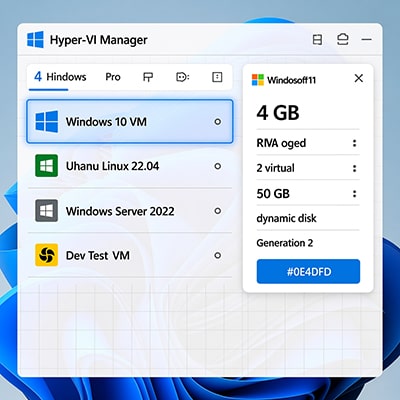
Hyper-V represents one of Pro's most valuable features for developers, IT professionals, and power users who need to run multiple operating systems simultaneously. This built-in virtualization platform lets you create virtual machines running Windows, Linux, or other operating systems without installing third-party software like VMware or VirtualBox. Developers use Hyper-V to test applications across different Windows versions, IT professionals practice system administration in isolated environments, and security researchers analyze malware safely within quarantined virtual machines. Home edition users must rely on third-party virtualization solutions that may lack Hyper-V's performance optimization and Windows integration.
Windows Sandbox extends Hyper-V's capabilities by providing a lightweight, disposable desktop environment for testing untrusted applications. Every time you launch Sandbox, Windows creates a fresh, isolated environment that shares your host system's hardware but remains completely separated from your main installation. When you close Sandbox, Windows permanently deletes everything inside, ensuring no residual files or malware persist. This proves invaluable for safely opening suspicious email attachments, testing potentially dangerous software, or browsing questionable websites without risking your primary system. Home lacks Sandbox entirely, forcing users toward less convenient alternatives like creating full virtual machines or risking their main installation.
Security and Encryption: BitLocker and Beyond
Security represents the most significant practical difference between Windows 11 Home and Pro for many users, particularly regarding data encryption and protection against unauthorized access. Windows 11 Home includes "Device Encryption," a simplified form of drive encryption that automatically encrypts your system drive if your hardware meets specific requirements—namely a modern PC with TPM 2.0 and support for InstantGo or Hardware Security Test Interface. Device Encryption activates automatically when you sign in with a Microsoft account, providing basic protection against data theft if someone steals your laptop. However, Device Encryption offers minimal configuration options and ties your encryption recovery key to your Microsoft account, creating privacy concerns for users who prefer local control.
BitLocker in Windows 11 Pro delivers enterprise-grade encryption with extensive configuration options that Device Encryption completely lacks. IT administrators can enforce encryption policies across multiple computers, require additional authentication factors like USB key drives or PINs before boot, encrypt external drives and USB flash drives, and manage recovery keys through corporate infrastructure rather than personal Microsoft accounts. BitLocker also supports encrypting specific files and folders rather than entire drives, provides detailed encryption status reporting, and integrates with hardware security modules for enhanced protection. These advanced capabilities make BitLocker essential for businesses handling sensitive data or users subject to data protection regulations like HIPAA or GDPR.
Windows Information Protection and Security Policies
Windows Information Protection (WIP) provides data loss prevention specifically for Pro edition, allowing organizations to separate personal and work data on the same device. WIP automatically encrypts corporate files, prevents accidental sharing through personal email or cloud storage, and enables remote data wiping if devices go missing—all without affecting personal files and applications. This enterprise data protection proves essential for companies supporting bring-your-own-device policies where employees use personal computers for work tasks. Home lacks WIP entirely, requiring businesses to choose between purchasing Pro licenses or implementing less effective third-party data protection solutions.
Group Policy Editor represents another Pro-exclusive security advantage, providing granular control over Windows settings and security configurations that Home users cannot access. IT administrators use Group Policy to enforce password complexity requirements, disable USB storage devices, control Windows Update behavior, restrict application installations, and configure hundreds of other system settings across entire organizations. While Group Policy primarily targets businesses managing multiple computers, individual Pro users benefit from precise system customization impossible through Home's standard Settings app. Power users often purchase Pro specifically for Group Policy access, enabling optimizations and security hardening that casual users never attempt.
Hardware Support: RAM and CPU Limits
Windows 11 Home imposes hardware limitations that Pro eliminates, though these restrictions rarely affect typical users with consumer-grade computers. Home supports maximum 128 GB of RAM and 64 CPU cores—specifications that exceed 99% of personal computers sold today. Most consumer laptops ship with 8-16 GB RAM, desktop gaming rigs typically max out around 32-64 GB, and even high-end workstations rarely exceed 128 GB unless handling specialized workloads like 8K video editing, large-scale scientific simulations, or massive database operations. Similarly, consumer processors top out at 16-24 cores for flagship desktop chips, nowhere near Home's 64-core limit.
Windows 11 Pro supports up to 2 TB of RAM and 128 CPU cores across two physical processors, targeting workstation and server-class hardware that costs thousands or tens of thousands of dollars. These limits matter primarily for professional content creators working with extremely large files, engineers running complex simulations, data scientists processing massive datasets, and IT professionals managing virtual machine hosts that allocate resources to multiple simultaneous operating systems. If you're building a computer with 256 GB RAM and dual Xeon processors costing $3,000 each, the $60 premium for Pro represents a trivial expense compared to your hardware investment.
| Hardware Specification | Windows 11 Home | Windows 11 Pro |
|---|---|---|
| Maximum RAM | 128 GB | 2 TB |
| Maximum CPU Cores | 64 cores | 128 cores |
| Physical CPUs Supported | 1 processor | 2 processors |
| Minimum RAM Requirement | 4 GB | 4 GB |
| Minimum Storage | 64 GB | 64 GB |
Real-World Performance Implications
Despite Pro's higher hardware limits, Windows 11 Home and Pro deliver identical performance on identical hardware for typical computing tasks. Both editions use the same Windows kernel, drivers, and system services, resulting in matching boot times, application launch speeds, gaming frame rates, and general responsiveness. Benchmark tests consistently show no meaningful performance difference between Home and Pro when running consumer applications—the gap appears only when utilizing Pro-exclusive features like Hyper-V virtual machines or when hardware exceeds Home's 128 GB RAM limit.
The slight performance differences that do exist typically favor Home by a tiny margin because Pro loads additional background services supporting enterprise features that Home omits. These services—domain join functionality, Group Policy processing, Windows Update for Business, and related enterprise infrastructure—consume minimal system resources on modern hardware but technically represent overhead that Home avoids. In practical terms, this difference proves completely imperceptible on any computer purchased in the last five years, making performance a non-factor in choosing between editions unless you specifically need Pro's features for reasons unrelated to speed.
Building a new PC and need Windows 11? Our guide to Windows licensing options explains retail versus OEM licenses and helps you choose the right edition for your build.
Business Features: Remote Desktop and Domain Join
Remote Desktop host capability ranks among Pro's most valuable features for both business and personal users who need secure access to their primary computer from remote locations. Windows 11 Home can connect to other computers running Remote Desktop—acting as a client—but cannot accept incoming connections, preventing you from accessing your Home PC remotely. Pro removes this limitation, enabling full Remote Desktop host functionality that lets you connect from anywhere with an internet connection to access files, run applications, and control your computer as if sitting directly in front of it. This proves essential for remote workers, frequent travelers, and anyone who occasionally needs files stored on their home computer while away.
Setting up Remote Desktop requires configuring your router to forward incoming connections securely, ideally through a VPN for enhanced security, and managing dynamic IP addresses through dynamic DNS services if your internet provider doesn't offer static IPs. While these technical requirements intimidate less experienced users, the convenience of accessing your full desktop environment remotely—rather than relying on cloud storage or email attachments—justifies the setup effort for many Pro users. Free alternatives like Chrome Remote Desktop or paid services like TeamViewer offer similar functionality but lack Remote Desktop's native Windows integration and may impose usage restrictions or subscription costs.
Active Directory and Domain Management
Windows 11 Pro supports joining computers to corporate Active Directory domains or Azure Active Directory, enabling centralized management that Home completely lacks. Domain-joined computers inherit security policies, software deployments, user permissions, and configuration settings from network administrators rather than relying on individual user configurations. Businesses with more than a handful of computers virtually always require Pro edition because Home's inability to join domains makes centralized management impossible, forcing IT departments to manually configure each computer individually—an approach that scales poorly and creates security vulnerabilities through inconsistent settings.
For home users and freelancers working independently, domain join functionality provides zero value and represents features you'll never use. However, remote workers connecting to corporate networks, consultants accessing client systems, or small business owners planning eventual growth should consider Pro edition specifically for domain support. IT departments typically mandate Pro edition for all work computers regardless of the employee's actual feature requirements, making Home edition essentially inappropriate for any computer that might connect to corporate infrastructure. This business requirement alone drives significant Pro adoption among users who otherwise need none of its advanced features.
Windows Update for Business and Assigned Access
Windows Update for Business provides granular control over update deployment timing and management that Home lacks entirely. Pro users can defer feature updates for months, schedule installations during specific maintenance windows, and test updates on pilot computers before rolling them out organization-wide. Home edition forces automatic updates with minimal control—you can pause updates for a week, but Windows eventually installs them regardless of your preferences. For home users, automatic updates ensure security patches install promptly, but businesses requiring testing before deployment or computers running specialized software sensitive to Windows changes need Pro's update management capabilities.
Assigned Access (formerly Kiosk Mode) locks Windows 11 Pro computers to run single applications, creating dedicated-purpose devices for retail point-of-sale systems, information displays, digital signage, or self-service terminals. Organizations deploy Assigned Access to prevent unauthorized access to Windows features, ensuring users interact only with approved applications. Home lacks this capability entirely, making it unsuitable for any scenario requiring locked-down, single-purpose computers. While most personal users never need Assigned Access, businesses deploying customer-facing systems or specialized workstations find this Pro-exclusive feature essential for security and usability.
Which Edition Should You Choose?
The Windows 11 Home versus Pro decision ultimately depends on whether you'll actually use Pro's additional features enough to justify the $60-99 premium. Home delivers exceptional value for typical users who primarily browse the web, stream media, play games, and handle standard productivity tasks. The overwhelming majority of consumer laptops ship with Home edition because manufacturers correctly recognize that most buyers need none of Pro's advanced capabilities. Unless you have specific requirements for encryption, remote access, virtualization, or business network integration, Home provides everything necessary for personal computing at the lowest cost.
Choose Windows 11 Home If You:
Home edition makes perfect sense when you use your computer primarily for personal tasks without business or advanced technical requirements. Students purchasing laptops for coursework, media consumption, and standard applications find Home completely sufficient—the Pro features they're paying extra for deliver zero practical benefit for typical educational use. Gamers building desktop PCs for entertainment discover that gaming performance depends entirely on hardware specifications and games themselves, not Windows edition—Home and Pro deliver identical frame rates, load times, and responsiveness in gaming workloads.
Casual users who check email, browse social media, stream Netflix, and manage photos rarely encounter situations where Pro features would improve their experience. The simplicity of Home's automatic updates, lack of complex enterprise settings, and streamlined approach actually benefits less technical users who prefer computers that "just work" without requiring advanced configuration. If you've never heard of BitLocker, don't know what a virtual machine is, and have never remotely accessed your computer, you almost certainly don't need Pro edition's capabilities that address precisely those advanced scenarios.
Windows 11 Home Advantages:
- $60-80 less expensive than Pro edition
- Includes all core Windows 11 features and gaming capabilities
- Simpler interface without enterprise settings cluttering menus
- Sufficient for 90% of personal computer users
- Lower system overhead from fewer background services
Windows 11 Home Limitations:
- No BitLocker encryption (only basic Device Encryption)
- Cannot act as Remote Desktop host
- No Hyper-V virtualization or Windows Sandbox
- Cannot join corporate domains or use Group Policy
- Limited to 128 GB RAM and 64 CPU cores
Choose Windows 11 Pro If You:
Pro edition delivers clear value when your work or computing needs specifically require its exclusive features. Remote workers who frequently access their home computer while traveling benefit enormously from Remote Desktop host capability, eliminating reliance on third-party remote access services and their associated costs or privacy concerns. The ability to connect directly to your computer from anywhere with an internet connection—accessing local files, running desktop applications, and maintaining your full working environment—easily justifies Pro's premium for mobile professionals and frequent travelers.
Developers, IT professionals, and technical enthusiasts who run virtual machines for testing, development, or experimentation find Hyper-V invaluable for their workflows. Creating isolated environments to test applications across different Windows versions, experiment with Linux distributions, or safely analyze suspicious software requires virtualization capabilities that only Pro provides natively. While third-party alternatives like VirtualBox exist, Hyper-V's deep Windows integration and performance optimization make it the preferred choice for Windows-centric development and IT work.
Windows 11 Pro Advantages:
- BitLocker full-disk encryption with advanced configuration
- Remote Desktop host for accessing PC remotely
- Hyper-V virtualization and Windows Sandbox
- Domain join and Group Policy for business networks
- Supports up to 2 TB RAM and 128 CPU cores
- Windows Update for Business with deployment control
Windows 11 Pro Considerations:
- $60-99 premium cost over Home edition
- Additional features unused by most personal users
- Slightly higher resource usage from enterprise services
- More complex settings and configuration options
Special Scenarios and Edge Cases
Certain use cases create compelling arguments for Pro even among home users who typically wouldn't need business features. Privacy-conscious individuals who encrypt sensitive personal data—financial records, medical information, personal documents—benefit from BitLocker's robust protection and configuration flexibility beyond Home's basic Device Encryption. Content creators working with client data under non-disclosure agreements or storing valuable intellectual property find encryption essential for protecting against data theft if laptops are stolen or lost.
Small business owners and freelancers planning future growth should strongly consider Pro edition even if they don't immediately need its features. Joining a domain becomes necessary as soon as you hire a second employee and need shared network resources, making Home unsuitable for any business trajectory involving eventual staff expansion. The $60 premium represents trivial expense compared to the hassle and cost of upgrading from Home to Pro later or replacing Home licenses entirely when business needs evolve. For business use, Pro simply represents the safe, future-proof choice.
Looking for the best deals on genuine Windows 11 licenses? Browse our selection of Windows 11 Home and Pro licenses with instant digital delivery and guaranteed authenticity.
Ready to purchase Windows 11? Shop Windows 11 Licenses and get your activation key delivered instantly.
Frequently Asked Questions
Can I upgrade from Windows 11 Home to Pro later?
Yes, you can upgrade from Windows 11 Home to Pro at any time through the Microsoft Store for $99. The upgrade process takes only a few minutes and preserves all your files, applications, and settings. However, this approach costs $238 total if you initially paid $139 for Home, making it more expensive than purchasing Pro upfront for $199. If you think you might need Pro features eventually, buying Pro initially saves money compared to upgrading later.
Do games run better on Windows 11 Pro than Home?
No, games perform identically on Windows 11 Home and Pro when using the same hardware. Both editions include identical gaming features like Auto HDR, DirectStorage, Game Mode, and Xbox integration. Gaming performance depends entirely on your graphics card, processor, RAM, and storage rather than Windows edition. Pro's higher cost delivers zero gaming benefits, making Home the correct choice for gaming-focused computers unless you need Pro's business features for other reasons.
Does Windows 11 Pro use more RAM or CPU than Home?
Windows 11 Pro uses marginally more system resources than Home because it loads additional background services supporting enterprise features like domain connectivity and Group Policy. However, this difference proves completely imperceptible on modern computers—typically just 50-100 MB of RAM and negligible CPU usage. For practical purposes, Home and Pro deliver identical performance on the same hardware for everyday tasks. The resource difference becomes noticeable only when actively using Pro-exclusive features like running virtual machines in Hyper-V.
Can Windows 11 Home use BitLocker encryption?
Windows 11 Home includes Device Encryption, a simplified version of BitLocker that automatically encrypts your system drive if your computer meets specific hardware requirements. Device Encryption protects your data if someone steals your laptop but offers minimal configuration options and ties recovery keys to your Microsoft account. Windows 11 Pro includes full BitLocker with advanced features like USB key authentication, external drive encryption, and enterprise key management. For most home users, Device Encryption provides sufficient protection, but businesses and privacy-conscious users benefit from BitLocker's additional capabilities.
Which edition should I buy for a work-from-home computer?
If your employer provides the computer or requires connecting to corporate networks, you almost certainly need Windows 11 Pro for domain join capability. Most corporate IT departments mandate Pro edition for all work computers regardless of the employee's role. If you're purchasing a personal computer for remote work as a freelancer or consultant, choose Pro if you need Remote Desktop for accessing client systems, require BitLocker encryption for sensitive data, or run virtual machines for development. Otherwise, Home suffices for standard remote work tasks like video conferencing, document editing, and web-based applications.
Conclusion
The choice between Windows 11 Home and Pro depends entirely on whether you'll actually use the additional features that justify Pro's $60-99 premium. For the vast majority of personal computer users—students, gamers, casual users, and home entertainment systems—Windows 11 Home delivers everything necessary at the lowest cost. The core Windows 11 experience remains identical between editions, with Home including all consumer features, gaming capabilities, and standard productivity tools that most buyers actually use daily. Pro's advanced capabilities sit idle on most consumer computers, representing wasted expense on features that never activate.
However, specific use cases make Pro edition essential rather than optional. Remote workers who need secure access to their home computers while traveling, developers running virtual machines for testing and development, small business owners connecting to corporate networks, and privacy-conscious users requiring robust data encryption all benefit directly from Pro's exclusive features. The ability to remotely access your computer, run multiple operating systems simultaneously, join business domains, and encrypt data with enterprise-grade BitLocker provides tangible value that easily justifies Pro's premium for users with these specific requirements.
The critical decision factor lies in honestly assessing your actual computing needs rather than purchasing features "just in case" you might need them eventually. If you've never remotely accessed your computer, don't work with virtual machines, and have no business network requirements, you'll never benefit from Pro edition's capabilities—making Home the financially sensible choice. Conversely, if any of Pro's features aligns with your regular workflow or business requirements, the $60 initial premium or $99 upgrade cost represents excellent value compared to purchasing equivalent functionality through third-party software and services. Choose the edition matching your actual needs, not the edition that sounds more impressive or professional.
Get Your Genuine Windows 11 License Today
Shop our complete selection of Windows 11 Home and Pro licenses with instant digital delivery, guaranteed authenticity, and expert support. Whether you need Home's affordability or Pro's advanced features, we've got you covered with competitive pricing and reliable service.
Shop Windows 11 Licenses