










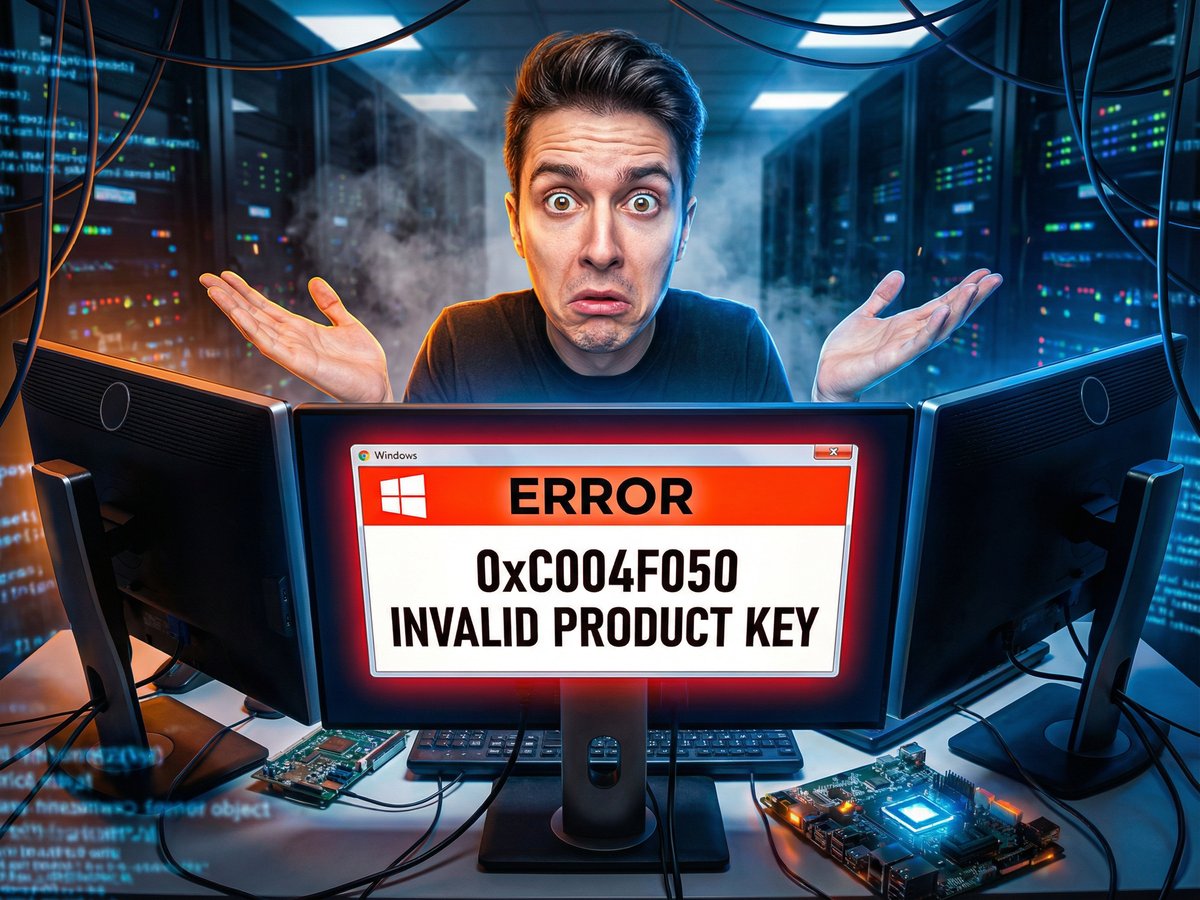
Error 0xC004F050 - What It Means:
"The Software Licensing Service reported that the product key is invalid."
Translation: Windows doesn't recognize your product key format, or the key doesn't match your Windows version/edition. This prevents activation until you resolve the mismatch.
Error 0xC004F050 is one of the most frustrating Windows activation errors because the message "invalid product key" makes it sound like you bought a fake or illegitimate key. In reality, this error almost never means your key is fake. Instead, it means Windows rejected your key because of a mismatch: wrong edition, wrong version, copy-paste errors, or entering a completely different product entirely. Your key is likely perfectly valid, just for the wrong thing or entered incorrectly.
The good news about error 0xC004F050 is that it's usually fixable within five minutes once you identify which specific mismatch caused it. Unlike error 0xC004C008 which requires waiting for server updates, error 0xC004F050 solutions are immediate. You either fix the mismatch and activate successfully right away, or you determine you need a different product key. No waiting, no complex troubleshooting, just straightforward verification and correction.
This guide walks through all five major causes of error 0xC004F050 in order of frequency, with specific solutions for each. We'll show you how to verify your Windows edition, check for key entry errors, confirm you're using the right product type, and determine if you need to reinstall or purchase a different license. By the end, you'll know exactly why your key was rejected and how to fix it.
What Is Error 0xC004F050?
Error 0xC004F050 is a Windows activation error indicating that Microsoft's activation servers rejected your product key because the key format is invalid, doesn't match your installed Windows version or edition, or is for a completely different product. The full error message typically reads: "The Software Licensing Service reported that the product key is invalid" or "Error code: 0xC004F050."

What "Invalid" Actually Means
Despite the alarming message, "invalid product key" rarely means the key itself is fake or illegitimate. In Microsoft's activation system, "invalid" simply means "this key doesn't work for what you're trying to activate." Think of it like trying to use a car key in a house lock - the key is real, it's just for the wrong thing. The five most common "wrong things" are:
- Wrong edition: Using a Windows 11 Home key to activate Windows 11 Pro (or vice versa)
- Entry error: Extra spaces, wrong characters, or formatting issues when entering the key
- Wrong product: Trying to activate Windows with an Office key or other Microsoft product
- Wrong version: Using a Windows 10 key on Windows 11 (or older incompatible versions)
- Wrong platform: Using a Mac Office key on Windows or vice versa
Why This Error Occurs
Microsoft's activation servers validate every product key against a database that knows which products and editions each key is authorized for. When you enter a key, the servers check: Is this a Windows key? Which Windows version? Which edition? If any answer doesn't match your actual installation, the servers reject it as "invalid." This protection prevents you from accidentally activating the wrong product and ensures license compliance.
Error 0xC004F050 vs Other Activation Errors
Understanding the difference between activation errors helps you apply the right fix:
| Error Code | Meaning | Fix Type |
|---|---|---|
| 0xC004F050 | Key is invalid/doesn't match | Immediate - verify key/edition match |
| 0xC004C008 | Key already in use elsewhere | Requires deactivation + waiting |
| 0x80070005 | Access denied/permissions | Run as administrator |
| 0x803F7001 | Can't reach activation servers | Check internet connection |
Error 0xC004F050 is unique because the fix doesn't involve troubleshooting Windows or waiting for servers. You're either using the wrong key for your installation, or you entered it incorrectly. Once you identify and fix the mismatch, activation succeeds immediately.
Cause 1: Edition Mismatch (Most Common - 60% of Cases)
The single most common cause of error 0xC004F050 is trying to activate Windows 11 Pro with a Home key, or Windows 11 Home with a Pro key. This accounts for approximately 60 percent of all invalid key errors. The problem occurs because Windows editions (Home, Pro, Enterprise) use completely different product keys, and they're not interchangeable even within the same Windows version.
How Edition Mismatch Happens
Most users don't intentionally install the wrong edition. The mismatch occurs in these scenarios:
- Windows installer defaults: During installation, Windows setup often defaults to Pro even if you have a Home key
- Media creation tool: Microsoft's media creation tool includes both Home and Pro, and you selected the wrong one
- Previous installation: You reinstalled Windows and forgot which edition you had before
- Confusion about purchase: You thought you bought Pro but actually purchased Home (or vice versa)
- Upgrade attempt: You're trying to "upgrade" from Home to Pro by entering a Home key (doesn't work this way)
How to Check Which Edition You Have Installed
Before trying any fixes, verify which Windows edition is actually installed on your computer.
- Press Windows key + I to open Settings
- Click System, then scroll down and click About
- Under "Windows specifications," look at the Edition field
- It will say "Windows 11 Home," "Windows 11 Pro," or "Windows 10 Home/Pro"
- Write this down - this is what you actually have installed

How to Check Which Edition Your Key Is For
Now verify which edition your product key activates. Check your eKeys order confirmation email.
Key Edition Verification:
- Open your eKeys order confirmation email
- Find the product name/description
- It should explicitly say "Windows 11 Home" or "Windows 11 Pro"
- Compare this to your installed edition from the step above
- They MUST match exactly for activation to work
Solution A: Reinstall the Correct Edition (Free but Time-Consuming)
If your key is for Home but you installed Pro (or vice versa), the permanent solution is reinstalling Windows with the correct edition. This takes 1-2 hours including backup and reinstallation but costs nothing.
- Back up all important files to external drive or cloud storage
- Download Windows Media Creation Tool from microsoft.com
- Create a bootable USB drive with the tool
- During creation, select the edition matching your product key (Home or Pro)
- Boot from the USB drive and install Windows
- When prompted for edition during installation, choose the one matching your key
- After installation completes, activate with your product key
- Activation will succeed immediately because editions now match
Solution B: Purchase Matching Edition License (Fast but Costs Money)
If you want to keep your current Windows installation without reinstalling, you can purchase a product key for the edition you actually have installed. This preserves all your programs, settings, and files but requires buying an additional license.
You have: Windows 11 Pro installed
You bought: Windows 11 Home key from eKeys
Options:
- Option A: Reinstall Windows 11 Home (free, time-consuming)
- Option B: Buy Windows 11 Pro key to match your installation (fast, costs money)
Solution C: Downgrade Edition (Advanced, Limited Success)
Windows theoretically supports downgrading from Pro to Home without reinstalling, but this is complicated and doesn't always work. It requires registry editing and special downgrade keys. For most users, reinstalling is more reliable than attempting downgrade.
How to Avoid Edition Mismatch in Future
Prevent this issue when installing Windows next time:
- Check your product key edition BEFORE starting Windows installation
- During installation, pay close attention to the edition selection screen
- Don't rush through installation - verify each screen matches your purchase
- Keep your eKeys order confirmation open during installation for reference
- If unsure, install Home (you can always upgrade later with correct key)
Cause 2: Copy-Paste Errors (25% of Cases)
The second most common cause of error 0xC004F050 is entering the product key incorrectly. Even though you're copying and pasting from your eKeys email, invisible characters, extra spaces, formatting codes, or simple typos can make Windows reject the key as invalid. This accounts for about 25 percent of cases.
Common Copy-Paste Issues
Product keys are exactly 25 characters in the format XXXXX-XXXXX-XXXXX-XXXXX-XXXXX. Several things can go wrong when copying from email:
- Extra spaces: Accidentally selecting a space before or after the key
- Line breaks: Email formatting inserting hidden line break characters
- HTML formatting: Copying from HTML email includes invisible formatting codes
- Similar characters: Manually typing and confusing 0 (zero) with O (letter), 1 (one) with I (letter i) or l (lowercase L)
- Partial selection: Only copying 20 or 24 characters instead of all 25
- Double-pasting: Pasting twice by accident, creating 50 characters
Solution: Clean Copy-Paste Method
Use this foolproof method to ensure you're entering the key correctly:
- Open your eKeys order confirmation email
- Find your product key - it's 25 characters like XXXXX-XXXXX-XXXXX-XXXXX-XXXXX
- SLOWLY select just the 25 characters - no text before or after
- Copy the selection (Ctrl+C)
- Open Notepad (Windows + R, type "notepad", press Enter)
- Paste into Notepad (Ctrl+V)
- Verify exactly 25 characters appear with no extra spaces or line breaks
- Select all in Notepad (Ctrl+A) and copy again (Ctrl+C)
- Now paste into Windows activation field
Pasting into Notepad first strips all invisible formatting and lets you visually verify the key is clean. This intermediate step eliminates 99 percent of copy-paste errors.
Manual Entry Best Practices
If you must type the key manually instead of copying:
Typing Verification:
- Use a large font in Notepad first so you can see characters clearly
- Type slowly and double-check each 5-character group before moving to next
- Pay attention to these commonly confused characters:
- 0 (zero) vs O (letter) - zero has a slash through it in most fonts
- 1 (one) vs I (letter i) vs l (lowercase L) - one is just a straight line
- 8 (eight) vs B (letter) - eight has two loops
- 5 (five) vs S (letter) - five is angular, S is curved
- Windows activation is case-insensitive, so capitals vs lowercase don't matter
- Don't manually type hyphens - Windows adds them automatically as you type
PDF Copy Issues
If your eKeys order confirmation is in PDF format, copying from PDFs often introduces formatting problems. Instead of copying from the PDF directly:
- Open the PDF
- Manually type the key into Notepad while looking at the PDF
- Verify character-by-character that Notepad matches PDF
- Copy from Notepad and paste into Windows activation
This seems slower than copying from PDF, but it's faster than dealing with invalid key errors and retrying multiple times.

Test the Key Format
Before entering your key into Windows activation, verify it passes basic format checks:
- Count characters (excluding hyphens): Should be exactly 25
- Count hyphen groups: Should be 5 groups of 5 characters each
- All characters should be alphanumeric (letters and numbers only, no symbols)
- No spaces, periods, commas, or other punctuation
- The hyphens should separate every 5 characters consistently
If your key doesn't match this format after pasting into Notepad, you copied incorrectly. Go back to your email and try again with more careful selection.
Cause 3: Wrong Product - Windows vs Office (10% of Cases)
About 10 percent of error 0xC004F050 cases occur because users are trying to activate Windows with a Microsoft Office product key, or vice versa. This happens more often than you'd think because both products use identical 25-character key formats, making them easy to confuse if you've purchased multiple Microsoft products from eKeys.
Why This Confusion Happens
Microsoft uses the same XXXXX-XXXXX-XXXXX-XXXXX-XXXXX format for all their product keys: Windows, Office, Visual Studio, Project, Visio, and more. If you've purchased multiple products, the keys look identical in your email. The only difference is the product name in the order confirmation text, which is easy to overlook when you're just grabbing the key to paste.
How to Verify You're Using a Windows Key
Check your eKeys order confirmation carefully:
- Open your eKeys order confirmation email
- Don't just grab the product key - read the product name above it
- Verify it explicitly says "Windows 11," "Windows 10," or "Windows [version]"
- If it says "Microsoft Office," "Office 2024," "Office 365," or similar, that's an Office key
- You cannot use an Office key to activate Windows, no matter how hard you try
Multiple Orders Confusion
If you've made multiple eKeys purchases, make sure you're looking at the correct order:
Multi-Order Checklist:
- Check the order date - use the most recent relevant purchase
- Verify the order number matches what you're trying to activate
- If you bought both Windows and Office, keep them in separate emails or clearly labeled
- Consider logging into your eKeys account dashboard where all purchases are organized by product type
Solution: Find the Correct Key
If you've determined you're using an Office key to activate Windows (or vice versa):
- Search your email for "eKeys" and "Windows" to find all Windows-related orders
- Open each order confirmation and verify the product name says Windows
- If you can't find a Windows key in your email, check your eKeys account at ekeys.io
- Log in and view your order history
- Filter or search for Windows products specifically
- Once found, copy the correct Windows key and try activation again
Don't Have a Windows Key?
If your search confirms you've only purchased Office (or other products) from eKeys but no Windows license:
Office Users: Separate Issue
If you're trying to activate Microsoft Office and receiving error 0xC004F050, the same edition-matching logic applies:
- Office 2024 key won't activate Office 2021
- Office Home and Student key won't activate Office Professional Plus
- Office for Mac key won't activate Office for Windows
See our complete Office activation troubleshooting guide for Office-specific solutions.
Cause 4: Version Incompatibility (3% of Cases)
Windows 10 and Windows 11 are separate products from Microsoft's licensing perspective, and keys are generally version-specific. While some Windows 10 keys do work on Windows 11 (Microsoft designed this intentionally for smooth upgrades), certain key types and older keys may not cross-activate between versions.
Windows 10 Key on Windows 11
Most Windows 10 product keys work on Windows 11 without issues, especially Retail keys purchased in recent years. However, you may encounter error 0xC004F050 in these scenarios:
- Very old Windows 10 keys: Keys from Windows 10's initial 2015 release may not be recognized by Windows 11
- Specific OEM keys: Some manufacturer-specific OEM keys are locked to Windows 10
- Volume license keys: Corporate MAK/KMS keys often have version restrictions
- Windows 10 LTSB/LTSC: Long-term servicing keys are version-specific
How to Check Windows Version
Verify which Windows version you have installed:
- Press Windows key + I to open Settings
- Go to System, then About
- Under "Windows specifications," check both Edition AND Version
- Look for "Windows 11" or "Windows 10" clearly labeled
- Note the exact version - this must match your product key
Solution A: Install Matching Windows Version
If your key is for Windows 10 but you installed Windows 11 (or vice versa):
- Determine which Windows version your key is for (check eKeys order)
- Download the appropriate Windows Media Creation Tool:
- Windows 11: microsoft.com/software-download/windows11
- Windows 10: microsoft.com/software-download/windows10
- Create installation media with the matching version
- Install the correct Windows version
- Activate with your product key - should work immediately
Solution B: Purchase Correct Version Key
If you want to keep Windows 11 but have a Windows 10 key (or vice versa):
Upgrade Path Consideration
If you have a valid Windows 10 license and want to move to Windows 11, the recommended path is:
- Install and activate Windows 10 with your existing key
- Ensure Windows 10 is fully activated and updated
- Use Windows Update to upgrade to Windows 11 (free upgrade)
- Windows 11 inherits the activation from Windows 10 automatically
This upgrade path preserves your Windows 10 license validity while moving to Windows 11, whereas clean-installing Windows 11 with a Windows 10 key may fail with error 0xC004F050.
Cause 5: Platform Mismatch - Mac vs Windows (2% of Cases)
This cause is rare for Windows activation (only about 2 percent of cases) but common for Office activation. Some Microsoft products have separate keys for Mac and Windows versions, and using the wrong platform key generates error 0xC004F050.
Windows-Specific Note
Windows itself doesn't run on Mac hardware natively (outside of Boot Camp or virtual machines), so platform mismatch is extremely rare for Windows product keys. However, if you're running Windows in a virtual machine on a Mac or using Boot Camp, make sure you're using a standard Windows license, not a Mac-specific product.
Office Platform Mismatch (More Common)
Microsoft Office has completely separate product keys for Mac and Windows versions:
- Office for Mac key: Only works on macOS (10.12 or later depending on Office version)
- Office for Windows key: Only works on Windows 10/11
- Keys are not interchangeable between platforms even for the same Office version
- The keys look identical (25 characters), so it's easy to confuse them
How to Verify Platform
Check your eKeys order confirmation for platform specification:
Platform Verification:
- Product name should explicitly say "for Mac" or "for Windows" or "for PC"
- If it just says "Office 2024" with no platform, check product details or contact eKeys
- Windows keys might be labeled as "PC" or "Windows" or just "Office [version]"
- Mac keys are usually clearly labeled "for Mac" due to lower volume
Solution: Purchase Correct Platform License
If you have a Mac Office key but need Windows Office (or vice versa):
Comprehensive Verification and Fix Process
If you've read through all five causes and still aren't sure which applies to you, follow this systematic verification process. Work through each step in order, and you'll identify the exact cause of your error 0xC004F050.
- Open your eKeys order confirmation email
- Copy the product key into Notepad
- Verify it's exactly 25 characters (not counting hyphens)
- Check for no extra spaces before, after, or in the middle
- Ensure all characters are letters or numbers (no special symbols)
- If the key looks clean, proceed to Step 2
- Look at the product name in your eKeys order confirmation
- Does it say "Windows 11" or "Windows 10"? (Correct for Windows activation)
- Or does it say "Office," "Visual Studio," or another product? (Wrong - can't activate Windows)
- If product type is correct, proceed to Step 3
- If product type is wrong, find your actual Windows order or purchase Windows
- Check eKeys order: Does it say "Home" or "Pro"?
- Check installed Windows: Settings → System → About → Edition field
- Do they match exactly? (Home = Home, Pro = Pro)
- If yes, proceed to Step 4
- If no, either reinstall correct edition or purchase matching key (see Cause 1 solutions)
- Check eKeys order: "Windows 11" or "Windows 10"?
- Check installed Windows: Settings → System → About → Version field
- Do they match? (11 = 11, 10 = 10)
- If yes, proceed to Step 5
- If no, either reinstall correct version or purchase matching key (see Cause 4 solutions)
- Copy key from Notepad (after Step 1 cleaning)
- Go to Settings → System → Activation
- Click "Change product key"
- Paste the clean key
- Click Next/Activate
- If successful, done! If still error 0xC004F050, proceed to Step 6
If you've verified all the above and still get error 0xC004F050, contact eKeys support with:
- Your order number
- Screenshot of the error
- Screenshot of Settings → System → About (showing your edition/version)
- Confirmation you verified Steps 1-5 above
Our team will verify the key in our system and Microsoft's database. If there's a key issue, we'll replace it immediately.
How to Prevent Error 0xC004F050
Avoiding this error entirely is easier than fixing it after the fact. These best practices ensure you never see error 0xC004F050 again.
1. Verify Before You Install
Before installing Windows, confirm your product key matches what you're about to install:
- Check eKeys order: Note the exact edition (Home vs Pro) and version (10 vs 11)
- Download Windows installation media matching those specifications exactly
- During installation, pay careful attention to edition selection screens
- When in doubt, install Home (easier to upgrade than downgrade)
2. Use the Notepad Method Every Time
Always paste your product key into Notepad first before entering into Windows activation. This five-second step eliminates copy-paste errors permanently.
3. Keep Orders Organized
If you purchase multiple Microsoft products:
- Create email folders: "Windows Licenses," "Office Licenses," etc.
- Label saved keys clearly: "Windows-11-Pro-Key.txt" not just "key.txt"
- Use eKeys account dashboard to view organized purchase history
- Take a screenshot of order confirmations and save with descriptive filenames
4. Read Installation Prompts Carefully
Don't rush through Windows installation clicking Next repeatedly. Read each screen, especially:
- Edition selection (Home, Pro, Education, etc.)
- Version confirmation (Windows 10 vs 11)
- License type screens
5. Bookmark Activation Guide
Save this article and our main Windows activation troubleshooting guide for quick reference during future installations. Having the guide open during activation catches errors before they happen.
Frequently Asked Questions
Does error 0xC004F050 mean my product key is fake?
No, error 0xC004F050 almost never indicates a fake or illegitimate product key. It means the key doesn't match what you're trying to activate - wrong edition, wrong version, entry error, or wrong product entirely. The key itself is likely valid for the correct product. If you purchased from eKeys, your key is guaranteed legitimate. The error is about compatibility mismatch, not key authenticity. Fake keys typically cause different errors or activate initially but deactivate later.
Can I use a Windows 11 Home key to activate Windows 11 Pro?
No, Windows editions use completely separate product keys that are not interchangeable. A Home key only activates Home edition, and a Pro key only activates Pro edition. If you have a Home key but installed Pro, you must either reinstall Windows 11 Home (free but time-consuming) or purchase a Windows 11 Pro license to match your installation. There's no way to "upgrade" or convert a Home key into a Pro key. The editions are treated as entirely separate products by Microsoft's licensing system.
Will my Windows 10 product key work on Windows 11?
Usually yes, but not always. Most Windows 10 Retail keys purchased in recent years work fine on Windows 11 - Microsoft designed this intentionally. However, very old Windows 10 keys from 2015-2016, certain OEM keys tied to specific manufacturers, and corporate volume license keys may not work on Windows 11. If your Windows 10 key fails with error 0xC004F050 on Windows 11, try the upgrade path instead: install Windows 10, activate it, then upgrade to Windows 11 through Windows Update. The upgrade preserves activation automatically.
I verified everything matches but still get this error. What now?
If you've confirmed your key is for Windows (not Office), the edition matches (Home = Home or Pro = Pro), the version matches (11 = 11 or 10 = 10), and you've copied the key cleanly into Notepad with no errors, then contact eKeys support immediately. Include your order number, screenshot of the error, and screenshot showing your installed edition from Settings - System - About. Our team will verify the key's status in both our system and Microsoft's database. If there's a key issue, we'll replace it within hours. In rare cases, Microsoft's activation servers may have an error that we can help escalate.
How do I know if I bought Home or Pro from eKeys?
Check your eKeys order confirmation email - the product name will explicitly state "Windows 11 Home" or "Windows 11 Pro" (same for Windows 10). If you can't find your confirmation email, log into your eKeys account at ekeys.io and view your order history. Each product is clearly labeled with the exact edition purchased. The price can also be a clue: Pro licenses cost more than Home licenses. If you're still unsure, contact eKeys support with your order number and we'll confirm which edition you purchased.
Can I downgrade from Pro to Home after installing?
Technically possible but complicated and unreliable. Windows does support edition downgrade through registry modifications and special downgrade keys, but the process is error-prone and can cause system instability. For most users, the better solution is reinstalling Windows with the correct edition from the start. Reinstallation takes 1-2 hours but guarantees a clean, stable system. If you absolutely need to keep your current installation, purchasing a Pro license to match is faster and more reliable than attempting downgrade.
What's the difference between error 0xC004F050 and 0xC004C008?
Error 0xC004F050 means "invalid product key" - the key doesn't match your Windows version/edition or was entered incorrectly. Error 0xC004C008 means "product key already in use" - the key is valid but already activated on another computer. Different causes require different solutions. 0xC004F050 fixes are immediate (correct the mismatch), while 0xC004C008 fixes require deactivating the other computer and waiting for server updates. See our complete guide to fixing error 0xC004C008 for that specific error.
Can I activate Windows without reinstalling if I have the wrong edition?
Yes, by purchasing a license matching your installed edition. If you installed Pro but have a Home key, buy a Pro license instead of reinstalling. If you installed Home but have a Pro key, you can either buy a Home license or use your Pro key after reinstalling Pro. The first option (buying matching license) preserves all your programs and settings. The second option (reinstalling) is free but requires backing up and reinstalling everything. Most users who can afford it prefer buying the matching license to avoid reinstallation hassle.
Does this error appear for Office activation too?
Yes, error 0xC004F050 can appear when activating Microsoft Office, and the causes are similar: Office 2024 key on Office 2021 installation, Home and Student key on Professional Plus, Mac key on Windows Office, or copy-paste errors. The solutions are also similar - verify version and edition match, check key entry is clean, confirm you're using an Office key not a Windows key. See our Office activation troubleshooting guide for Office-specific solutions.
How long does error 0xC004F050 take to fix?
If the fix is correcting a copy-paste error or entering the right key from a different order, activation succeeds within 30 seconds. If you need to reinstall Windows with the correct edition, plan for 1-2 hours including backup and reinstallation time. If you need to purchase a matching license, activation is instant once you receive the new key (eKeys delivers keys within minutes). Unlike error 0xC004C008 which requires waiting for Microsoft's servers, error 0xC004F050 solutions are immediate once you identify and correct the mismatch.
Conclusion
Error 0xC004F050 is one of the most common Windows activation errors, but it's also one of the quickest to resolve once you understand the root cause. Unlike errors that require server updates or complex troubleshooting, this error is simply about matching: your product key must match your installed Windows edition, version, and product type. Get any of those wrong, or enter the key with errors, and Microsoft's activation servers reject it as "invalid."
The vast majority of cases fall into just two categories: edition mismatch (Home key on Pro installation or vice versa) and copy-paste errors introducing invisible formatting or extra characters. These account for 85 percent of all error 0xC004F050 instances and both have immediate fixes. Edition mismatch requires either reinstalling the correct edition or purchasing a matching license. Copy-paste errors require using the Notepad cleaning method to ensure a clean key entry.
Remember that "invalid product key" doesn't mean fake or illegitimate - it means incompatible with what you're trying to activate. Every product key purchased from eKeys is genuine and will work perfectly when used with the correct Windows edition and version. If you've followed this guide thoroughly and still encounter the error, contact our support team. We guarantee all our keys and will resolve any activation issues quickly, whether that means replacing a key or helping you identify the specific mismatch.
For other Windows activation issues, check our complete Windows activation troubleshooting guide which covers all error codes. If you need help choosing between Windows editions, see our Windows 11 Home vs Pro comparison guide to understand the differences before purchasing.
Need the Matching Windows Edition?
Discovered you need a different Windows edition than you have? eKeys offers instant delivery on all Windows licenses.
Shop Windows LicensesUse code MATCH25 for 25% off when purchasing the correct edition to match your installation