









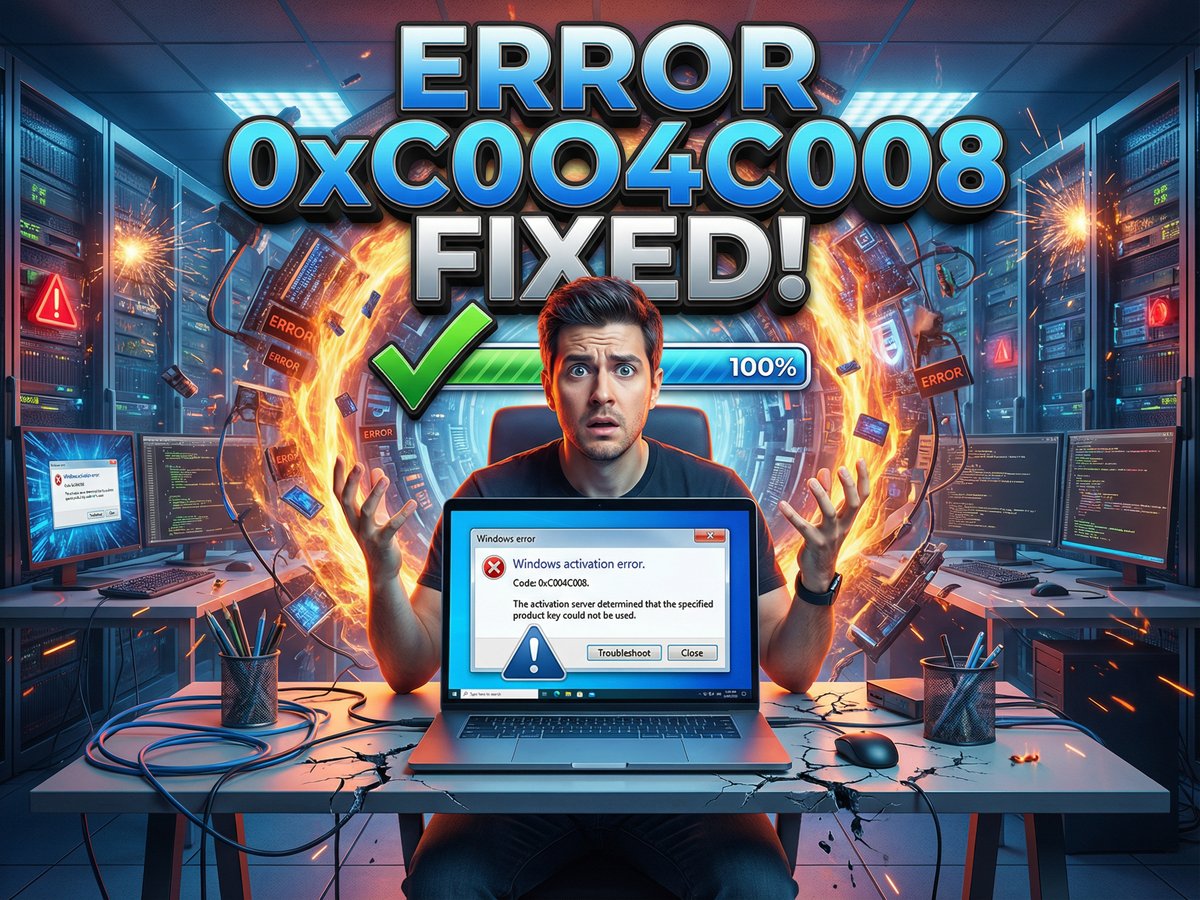
Error 0xC004C008 - What It Means:
"The activation server determined that the specified product key has been blocked."
Translation: Your Windows product key is already activated on another computer, or Windows thinks it is. This prevents activation until you resolve the conflict.
You're trying to activate Windows with a legitimate product key from eKeys, and suddenly you're hit with error code 0xC004C008. The message says your product key is already in use or has been blocked. Your immediate thought: "But I just bought this key!" or "I'm only using it on this one computer!" Don't panic. This error is common, fixable, and usually has nothing to do with key validity.
Error 0xC004C008 appears when Microsoft's activation servers detect that your product key is already active on another device, or when Windows detects significant hardware changes that make it think you're trying to activate on a "new" computer. The solution depends entirely on your specific situation: whether you're transferring Windows to a new PC, whether you changed major hardware components, or whether this is genuinely the first time you're using this key. Each scenario has a different fix, and this guide walks you through all of them.
Most cases of error 0xC004C008 are resolved within 10 minutes once you understand which scenario applies to you and follow the correct deactivation or reactivation steps. We'll also cover the critical difference between Retail and OEM Windows licenses, because this determines whether you can transfer your license at all. Let's identify your situation and get Windows activated.
What Is Error 0xC004C008?
Error 0xC004C008 is a Windows activation error indicating that your product key has already been used to activate Windows on another computer, or that Windows has detected it's already active somewhere else in Microsoft's licensing system. The full error message typically reads: "The activation server determined that the specified product key has been blocked" or "The product key you entered has already been used on another device."

Why This Error Occurs
Microsoft's activation system tracks every Windows product key and which hardware it's activated on. When you try to activate Windows, the activation servers check if your key is already associated with another computer. Error 0xC004C008 appears in these situations:
- Legitimate transfer: You're moving Windows from an old PC to a new one but haven't deactivated the old installation yet
- Hardware changes: You replaced your motherboard or made significant hardware upgrades, and Windows thinks it's a completely different computer
- Reinstallation: You reinstalled Windows on the same PC without properly deactivating first
- Activation limit: Your license type allows only one installation and you're trying to activate a second device
- Rarely, fraudulent use: Someone else activated your key without authorization (only happens with keys from unauthorized resellers)
Is This Error Your Fault?
No. Error 0xC004C008 is a normal part of Windows' license protection system and doesn't mean you did anything wrong. It simply means the activation system detected a potential conflict that needs resolution. In fact, seeing this error when transferring Windows to a new PC is expected behavior and part of the normal deactivation/reactivation process. The error exists to prevent one product key from being used on unlimited computers simultaneously.
Quick Diagnosis: Which Scenario Are You?
The fix for error 0xC004C008 depends entirely on your specific situation. Before jumping to solutions, identify which scenario matches your case. This saves time by sending you directly to the right fix instead of trying every method randomly.
Choose Your Scenario:
Scenario A: Transferring to a New PC
You're in this scenario if:
- You built or bought a new computer
- You used this product key on your old PC previously
- Your old PC still exists and is functional
- You want to move your Windows license from old PC to new PC
Solution: Deactivate Windows on the old PC, then activate on the new one. Jump to Scenario A solutions
Scenario B: Hardware Changed on Same PC
You're in this scenario if:
- You replaced your motherboard, CPU, or multiple major components
- This is the SAME physical computer, just upgraded
- Windows was activated fine before the hardware change
- Now it's asking to reactivate and showing error 0xC004C008
Solution: Use Windows Activation Troubleshooter or phone activation. Jump to Scenario B solutions
Scenario C: Never Used This Key Before
You're in this scenario if:
- You just purchased this product key from eKeys
- This is the first time you're trying to use it
- You only have ONE computer
- You've never activated Windows with this key anywhere
Solution: The key may have been used fraudulently or flagged incorrectly. Jump to Scenario C solutions
Scenario A: Transferring Windows to a New PC
You're upgrading to a new computer and want to use your existing Windows license. This is the most common cause of error 0xC004C008 and is completely expected. The solution requires deactivating Windows on your old PC first, which frees up the license for activation on your new computer. However, this only works if you have a Retail Windows license, not an OEM license.
Step 1: Verify Your License Type
This is critical. Only Retail Windows licenses can be transferred between computers. OEM licenses are permanently tied to the original motherboard and cannot be moved, even if you no longer use that computer. Check your eKeys order confirmation to see which type you purchased.
| Feature | Retail License | OEM License |
|---|---|---|
| Transferable | Yes - unlimited transfers | No - tied to first PC |
| Can deactivate old PC | Yes | Not applicable |
| Hardware changes | Survives motherboard replacement | Dies with motherboard |
| Typical use case | Users who upgrade PCs | One-time builds, pre-builts |
Step 2: Deactivate Windows on Old PC (Retail Only)
If you have a Retail license and access to your old computer, deactivate Windows there to free up the license. This is a two-command process that takes less than two minutes.
- On your OLD PC: Click Start, type "cmd", right-click Command Prompt, select "Run as administrator"
- Type this command and press Enter:
slmgr.vbs /upk - Wait for the popup: "Uninstalled product key successfully"
- Type this second command and press Enter:
slmgr.vbs /cpky - Wait for confirmation: "Product key from registry cleared successfully"

These commands do two things: /upk uninstalls the product key from Windows, and /cpky clears it from the Windows registry. Together, they completely remove the license from your old PC and tell Microsoft's activation servers that this computer is no longer using the key.
Step 3: Wait for Microsoft Servers to Update
After deactivating your old PC, Microsoft's licensing servers need time to propagate the change across their system. This isn't instant. In most cases, you can try activating your new PC within 2-4 hours. Microsoft's official guidance is to wait up to 24 hours for complete propagation, though this is conservative.
Step 4: Activate on New PC
After waiting the appropriate time, activate Windows on your new computer using your product key.
- On your NEW PC: Go to Settings → System → Activation
- Click "Change product key"
- Enter your product key exactly as shown in your eKeys email
- Click "Next" and wait for activation to complete
- If successful, you'll see "Windows is activated"
If activation still fails with error 0xC004C008, wait another 12-24 hours and try again. Some users report needing the full 24-hour window before Microsoft's servers recognize the license as available.
What If You No Longer Have Access to the Old PC?
If you sold your old computer, it broke permanently, or you otherwise can't access it to run deactivation commands, you have two options:
If your Windows was linked to a Microsoft account on the old PC:
- Go to account.microsoft.com/devices
- Sign in with the Microsoft account you used on the old PC
- Find your old PC in the device list
- Click "Remove device" or look for options to manage activations
- This may free up the license (success varies)
Call Microsoft's activation support and explain the situation. They can sometimes manually deactivate the old PC in their system. You'll need proof of purchase (your eKeys order confirmation). Results vary depending on the support representative.
If you're a verified eKeys customer with a Retail license and absolutely cannot deactivate the old PC, contact our support team. In some cases, we can assist with license transfer issues or provide guidance on working with Microsoft support. Include your order number and explanation of the situation.
Scenario B: Hardware Changed on Same PC
You upgraded your motherboard, CPU, or multiple major components, and Windows now thinks it's on a completely different computer. This triggers error 0xC004C008 even though it's technically the same PC. Windows activation is tied to a hardware "fingerprint" that includes your motherboard, and significant changes to this fingerprint make Windows require reactivation.
Why Hardware Changes Cause This Error
Windows creates a unique hardware ID based on your computer's components, with the motherboard being the most important. When you change the motherboard, Windows sees a completely different hardware ID and assumes you're trying to activate on a new PC. This is intentional anti-piracy protection. However, Microsoft provides tools specifically for this scenario that let you reactivate legally after hardware changes.
Solution 1: Windows Activation Troubleshooter (Easiest)
Windows 10 and 11 include a built-in Activation Troubleshooter designed specifically for hardware change scenarios. This is the easiest and most reliable method.
- Go to Settings → System → Activation
- You should see an error message about activation failing
- Look for "Troubleshoot" link and click it
- The troubleshooter will detect that hardware changed
- Select "I changed hardware on this device recently"
- Sign in with your Microsoft account if prompted (create one if needed)
- You'll see a list of devices associated with your Microsoft account
- Select "This is the device I'm using right now"
- Click "Activate"

Solution 2: Phone Activation (No Microsoft Account Needed)
If you don't want to create a Microsoft account or the Troubleshooter doesn't work, phone activation is your backup. This method works offline and doesn't require an internet connection for the activation itself.
- Press Windows key + R to open Run dialog
- Type:
slui.exe 4and press Enter - Select your country from the dropdown list
- Click "Next" - you'll see a toll-free phone number and an Installation ID
- Call the displayed phone number (it's an automated system, free to call)
- Follow the automated prompts to enter your Installation ID using your phone keypad
- The system will provide a Confirmation ID (write it down or record it)
- Enter the Confirmation ID into the Windows activation wizard
- Click "Activate Windows"

Phone activation typically takes 5-10 minutes total including the call. The automated system is available 24/7 in most countries. This method works even if you're getting error 0xC004C008 through normal activation, because it uses a different activation pathway.
Solution 3: Link License to Microsoft Account BEFORE Hardware Changes
This is preventive, not a fix for current errors, but worth noting for future hardware upgrades. If you link your Windows license to your Microsoft account before making hardware changes, reactivation after upgrades becomes automatic.
- Go to Settings → Accounts → Your info
- Click "Sign in with a Microsoft account instead" (if not already signed in)
- Sign in with your Microsoft account
- Windows automatically links your license to this account
- When you upgrade hardware later, Windows will auto-reactivate when you sign in
Scenario C: Never Used This Key Before
You just purchased a product key from eKeys, this is the first time you're using it, you only have one computer, and you're still getting error 0xC004C008. This scenario is rare but does happen, usually due to one of three causes: the key was used fraudulently by someone else, Microsoft's system incorrectly flagged the key, or there's a confusion about which key you're entering.
First: Triple-Check You're Using the Correct Key
Before assuming fraud, verify you're entering the right product key. This sounds obvious, but it's surprisingly common to mix up keys if you've purchased multiple products.
Verification Checklist:
- Open your eKeys order confirmation email for this specific purchase
- Verify the product key matches Windows version you're activating (Windows 11 key for Windows 11, etc.)
- Confirm you're not accidentally entering an Office key or key from a different order
- Check for copy-paste errors - paste into Notepad first to verify it's exactly 25 characters
- Ensure no extra spaces before, after, or between character groups
Second: Check If Key Was Previously Used by Mistake
Sometimes users purchase a key, activate it on a test machine or VM, forget about it, then try to activate on their main PC. Check if you tested this key anywhere else.
Third: Verify Key Legitimacy with eKeys
If you're certain you've never used this key, it may have been compromised before you received it. While this is extremely rare with eKeys (we source directly from Microsoft), it can happen if a key was leaked or used fraudulently in Microsoft's system before purchase.
- Gather your order number (found in confirmation email)
- Take a screenshot of the error 0xC004C008 message
- Note the exact product key you're trying to activate (last 5 characters only for security)
- Contact eKeys support at support@ekeys.io or via live chat
- Explain: "Brand new key, never used, getting error 0xC004C008 immediately"
- Provide order number and screenshot
eKeys support will verify the key's status in our system and Microsoft's database. If the key shows as never activated in our records but Microsoft reports it as in use, we'll issue an immediate replacement key at no charge. This typically resolves within 2-4 hours during business hours.
Fourth: Try Phone Activation
Sometimes Microsoft's automated activation servers incorrectly flag keys, but phone activation (which uses a different system) succeeds where online activation fails. Before contacting support, try phone activation as described in Scenario B, Solution 2.
During phone activation, the automated system may recognize your key is legitimate even though online activation rejected it. If phone activation also fails with the same error, this confirms the issue is in Microsoft's central licensing database and requires support intervention.
Understanding Retail vs OEM Licenses
The difference between Retail and OEM Windows licenses is critical when dealing with error 0xC004C008, because it determines whether you can transfer your license at all. Many users don't realize which type they have until they try to move Windows to a new PC and discover their license won't transfer. Understanding these differences helps you choose the right license upfront and know what to expect.
What Is a Retail License?
Retail licenses are fully transferable Windows licenses sold through normal retail channels. When you buy a Retail license, you own it permanently and can move it between computers unlimited times throughout its life. The license isn't tied to any specific hardware. This is the type most individual users should purchase if they plan to upgrade computers in the future.
Retail License Characteristics:
- Transferable: Can be moved to a new PC unlimited times (one active PC at a time)
- Hardware independent: Not tied to motherboard or any specific component
- Deactivation: Must deactivate on old PC before activating on new one
- Microsoft support: Typically includes direct support from Microsoft
- Updates: Receives all Windows updates including major version upgrades
- Price: Usually more expensive than OEM licenses
- Typical use: Individual users, enthusiasts, people who upgrade PCs frequently
What Is an OEM License?
OEM (Original Equipment Manufacturer) licenses are sold to PC manufacturers and system builders. These licenses are permanently tied to the first motherboard they're activated on. Once activated, an OEM license cannot be transferred to another computer, even if the original PC is broken, sold, or no longer in use. The license "dies" with the motherboard.
OEM License Characteristics:
- Non-transferable: Permanently tied to first motherboard, cannot move to new PC
- Hardware locked: Motherboard replacement = need new license
- No deactivation: Cannot free up the license for use elsewhere
- No Microsoft support: Support provided by PC manufacturer or retailer only
- Updates: Still receives Windows updates and security patches
- Price: Typically 20-40% cheaper than Retail licenses
- Typical use: Pre-built computers, one-time builds, budget builds where cost matters more than flexibility
How to Tell Which License You Have
Check your eKeys order confirmation email. It should clearly state either "Retail" or "OEM" in the product name or description. If it doesn't explicitly say, look for these clues:
License Type Indicators:
- Product name includes "Retail" or "Full Version" = Retail license
- Product name includes "OEM" or "System Builder" = OEM license
- Price significantly lower than Microsoft Store = Likely OEM
- Price close to Microsoft Store = Likely Retail
- Marketed for "PC builders" or "system builders" = OEM
You can also check in Windows itself after activation:
- Press Windows key + R, type
cmdand press Enter - Type:
slmgr.vbs /dlvand press Enter - A window appears showing detailed license information
- Look for "Description" field - it may say "RETAIL channel" or "OEM_DM channel"
- Also check "Product Key Channel" if shown

What If You Have OEM and Need to Transfer?
If you have an OEM license and error 0xC004C008 appears because you're trying to move to a new PC, you have limited options. OEM licenses cannot be transferred by design, and no amount of troubleshooting will change this. Your choices are:
This is the intended solution. Your OEM license remains on the old PC (or dies with it), and you buy a new license for your new computer. Consider purchasing a Retail license this time for future flexibility.
Shop Windows 11 Retail licenses - transferable to future PCs, better long-term value for users who upgrade hardware.
If your old PC still works and the new PC is for a different purpose, keep the old PC activated with your OEM license and purchase a new license for the new PC. This works if you're setting up a second computer rather than replacing one.
In rare cases, Microsoft support representatives have helped users transfer OEM licenses under special circumstances (original PC permanently broken, natural disaster, etc.). Success is not guaranteed and depends heavily on which support rep you reach. Worth trying if your situation is truly exceptional.
Which License Should You Buy?
Choose based on your usage pattern:
| Your Situation | Recommended License | Why |
|---|---|---|
| Build new PC every 2-3 years | Retail | Transfer license to each new build, save money long-term |
| Upgrade motherboard/CPU occasionally | Retail | Avoid rebuying Windows after hardware changes |
| One-time build, keep 5+ years | OEM | Lower cost, unlikely to need transfer |
| Pre-built PC from manufacturer | Usually comes with OEM | Already included, no choice needed |
| Multiple PCs, different purposes | OEM for each | No transfers needed, save per-license |
How to Prevent Error 0xC004C008
While error 0xC004C008 is fixable, preventing it in the first place saves time and frustration. These best practices help you avoid activation conflicts entirely, whether you're transferring Windows to a new PC, upgrading hardware, or managing multiple installations.
1. Deactivate Before Hardware Changes
If you know you're about to replace your motherboard or build a new PC, deactivate Windows on the old system before making changes. This proactively frees up the license and prevents activation errors on the new hardware.
- Before touching hardware: Run
slmgr.vbs /upkandslmgr.vbs /cpkyon current PC - Wait 2-4 hours for Microsoft's servers to update
- Then perform your hardware upgrade or build new PC
- Activate Windows with your product key on the new/upgraded system
- No error 0xC004C008 appears because license was already freed
2. Link License to Microsoft Account
Linking your Windows license to a Microsoft account provides an automatic reactivation path after hardware changes. This doesn't prevent the error entirely, but makes recovery much easier through the Activation Troubleshooter.
- Go to Settings → Accounts → Your info
- If not already signed in, click "Sign in with a Microsoft account instead"
- Create a Microsoft account if you don't have one (free)
- Sign in - Windows automatically links your license
- Future hardware changes can use Activation Troubleshooter for one-click reactivation

3. Document Your Activations
Keep a simple spreadsheet or note tracking which product keys are activated on which computers. This prevents confusion when managing multiple Windows installations and helps you quickly identify which PC needs deactivation when transferring.
What to Track:
- Product key (last 5 characters for security)
- Which PC it's activated on (name or description)
- Activation date
- License type (Retail or OEM)
- eKeys order number
4. Choose the Right License Type Upfront
Prevent future transfer issues by choosing a Retail license if you plan to upgrade PCs or hardware frequently. Paying slightly more upfront for a Retail license saves money in the long run compared to repeatedly buying OEM licenses for each new build.
5. Use Virtual Machines Wisely
If you test Windows in VMs, remember that activating there counts against your license limit. Either use VM snapshots to test without activating, or deactivate the VM before activating on your physical machine. Leaving Windows activated in forgotten VMs is a common cause of unexpected error 0xC004C008.
6. Wait Full 24 Hours After Deactivation
Impatience causes many recurring 0xC004C008 errors. When transferring a license, wait the full 24 hours Microsoft recommends, even if you're eager to activate your new PC. Trying too soon means you'll just see the error again and have to wait anyway.
Frequently Asked Questions
How long does it take for deactivation to take effect?
Deactivation on your old PC takes effect immediately for that specific computer - the commands remove the license instantly. However, Microsoft's activation servers need time to propagate this change across their global system. Most users can successfully activate a new PC within 2-4 hours after deactivating the old one. Microsoft's official recommendation is to wait 24 hours for complete propagation. If you try activating too soon and still get error 0xC004C008, simply wait longer and try again. The full 24-hour window ensures the license is recognized as available worldwide.
Can I use my Windows key on both a physical PC and a virtual machine?
No, a single Windows product key can only be activated on one computer at a time, whether physical or virtual. Activating Windows in a virtual machine (VMware, VirtualBox, Hyper-V) counts as a full activation and uses up your license slot. If you need Windows on both a physical PC and VM simultaneously, you need two separate licenses. Alternatively, you can activate on one, deactivate it when switching to the other, though this becomes tedious. For development or testing, consider using trial versions of Windows in VMs, or take snapshots before activation so you can revert without consuming your license.
What if I sold my old PC and can't deactivate it?
If you sold your old computer without deactivating Windows first, you have several options. First, if the buyer is cooperative and you trust them, you could ask them to run the deactivation commands (slmgr.vbs /upk and /cpky) for you - though this is awkward. Second, if your old Windows was linked to a Microsoft account, try logging into account.microsoft.com/devices and removing that device from your account. Third, call Microsoft's activation support line and explain the situation - they can sometimes manually deactivate the old PC in their system if you provide proof of purchase. Lastly, contact eKeys support with your order number; while we can't deactivate Microsoft's servers, we can guide you through the best approach for your specific license type. This situation is exactly why we recommend proactive deactivation before selling PCs.
Will upgrading RAM or my graphics card cause this error?
No, upgrading RAM, graphics cards, hard drives, or SSDs typically does not trigger error 0xC004C008 or require reactivation. Windows primarily ties activation to your motherboard and CPU. You can upgrade these other components freely without activation issues. The components most likely to trigger reactivation are: motherboard replacement (almost always requires reactivation), CPU replacement (sometimes triggers reactivation), and changing from BIOS to UEFI mode or vice versa. If you do encounter activation issues after minor upgrades, Windows usually reactivates automatically within a few hours as its servers recognize the same base system.
Can I reuse an OEM license if I replace just the motherboard on the same PC?
Technically no, but practically it's complicated. OEM licenses are legally tied to the original motherboard permanently. If you replace the motherboard, the license officially ends and you need a new Windows license. However, in practice, if you use phone activation and explain you're repairing the same PC, Microsoft support sometimes allows reactivation. Success varies by support representative and how you explain the situation. For guaranteed reactivation rights after motherboard replacement, you need a Retail license, not OEM. This is one of the key differences between the license types and why Retail licenses cost more despite being technically the same Windows software.
How many times can I transfer a Retail license?
Unlimited. Retail Windows licenses can be transferred between computers as many times as you want throughout the license's lifetime. The only restriction is that the license can only be active on one computer at any given time. You must deactivate it on the old PC before activating on a new one. This makes Retail licenses ideal for enthusiasts who build new PCs every few years or frequently upgrade motherboards. You can use the same Retail license across a dozen different computers over ten years if you want, as long as you properly deactivate before each transfer and only have it active on one PC at a time.
What's the difference between error 0xC004C008 and 0x4004F00C?
Both errors indicate your product key is already in use or has reached its activation limit, but they appear in different contexts. Error 0xC004C008 is specific to Windows activation and means the activation server determined your key is blocked or already used. Error 0x4004F00C appears during Office activation (and sometimes Windows) and specifically means the activation limit for that key has been exceeded. The solutions are similar for both: deactivate on old devices, wait for server propagation, then activate on new device. The underlying cause (key already in use) is the same; the different error codes just indicate which Microsoft product (Windows vs Office) is reporting the issue.
Will phone activation work if online activation fails with this error?
Sometimes, but not always. Phone activation uses a different activation pathway than online activation, which means it occasionally succeeds when online activation shows error 0xC004C008. This is because phone activation connects to different servers and sometimes those servers have more up-to-date information about license availability. However, if your license is genuinely in use elsewhere, phone activation will fail with the same error. Phone activation is worth trying as it takes only 5-10 minutes, and it works often enough to be a valuable troubleshooting step. The worst outcome is the automated system tells you the same thing - that your key is already in use - in which case you know deactivation is required.
Can I use the same key on a dual-boot setup?
If you're dual-booting two different versions of Windows (for example, Windows 10 and Windows 11) on the same physical computer using the same hardware, technically you can activate both with the same key because Windows sees the same hardware ID. However, this is against Microsoft's license terms - one license should activate one Windows installation. If you're dual-booting Windows and Linux (or other non-Windows OS), you only need to activate the Windows partition once and it remains activated. For dual-booting two Windows installations legitimately, you should use two different product keys. That said, many users report successfully activating dual-boot Windows setups with a single key without issues, though this may change with future Windows updates.
Does error 0xC004C008 mean my product key is invalid?
No, error 0xC004C008 does not mean your product key is invalid or fake. It specifically means the key is already in use somewhere else, not that the key itself is illegitimate. Your product key is likely perfectly valid - it's just already activated on another computer or was previously activated and not properly deactivated. Invalid or fake product keys typically generate error 0xC004F050 instead. If you purchased from eKeys and get error 0xC004C008 on a brand new key, it likely means the key was used fraudulently before you received it, which is extremely rare. In that case, eKeys will replace the key immediately as it's covered under our legitimacy guarantee.
Conclusion
Error 0xC004C008 looks intimidating when it appears, but it's actually one of the more straightforward Windows activation errors to resolve once you understand your specific situation. The error simply means your product key is already in use elsewhere in Microsoft's licensing system, and the solution involves deactivating the old installation, waiting for server propagation, or using alternative activation methods like phone activation or the Windows Activation Troubleshooter.
The key to resolving this error is correctly identifying which scenario you're in: transferring to a new PC, upgrading hardware on the same PC, or encountering fraudulent use of a new key. Each scenario has specific solutions that work reliably when followed correctly. Most users successfully activate Windows within 10 minutes once they apply the right fix. The most common mistake is impatience - trying to activate immediately after deactivating without waiting for Microsoft's servers to propagate the change.
Understanding the difference between Retail and OEM licenses prevents this error in the future and helps you choose the right license type for your needs. If you upgrade PCs or motherboards regularly, the extra cost of a Retail license pays for itself by allowing unlimited transfers. For one-time builds you'll keep for years, OEM licenses save money upfront. Choose based on your actual usage pattern rather than just price.
Your Windows should now be activated successfully. If you followed the appropriate scenario guide and still encounter issues, the problem may require direct intervention from Microsoft support or eKeys customer service. Don't hesitate to reach out - we guarantee all our product keys and will resolve any activation problems quickly.
For related activation issues, check our complete Windows activation troubleshooting guide which covers all error codes and scenarios. If you're considering upgrading to a different Windows edition, our Windows 11 Home vs Pro comparison helps you choose the right version for your needs.
Need a New Windows License?
If you determined your OEM license can't transfer or you need licenses for multiple PCs, eKeys offers instant delivery with 24/7 support.
Shop Windows LicensesUse code TRANSFER20 for 20% off Retail licenses - fully transferable to future PCs